The Jobs page
What jobs are, how they are triggered, and how to find and rerun them in the Control Panel.
A job is a single run of a stream. Each time a stream executes, on a schedule, from a webhook, or manually, a job is created, and any records it processes become events inside that job. If events are the individual orders and updates, jobs are the runs that carried them.
How jobs are created
Scheduled: the source runs on its configured schedule (for example, every 15 minutes)
Webhook: a connected system pushes data to HC, which starts a job to process it
Manual: triggered by a user in the Control Panel
The jobs list
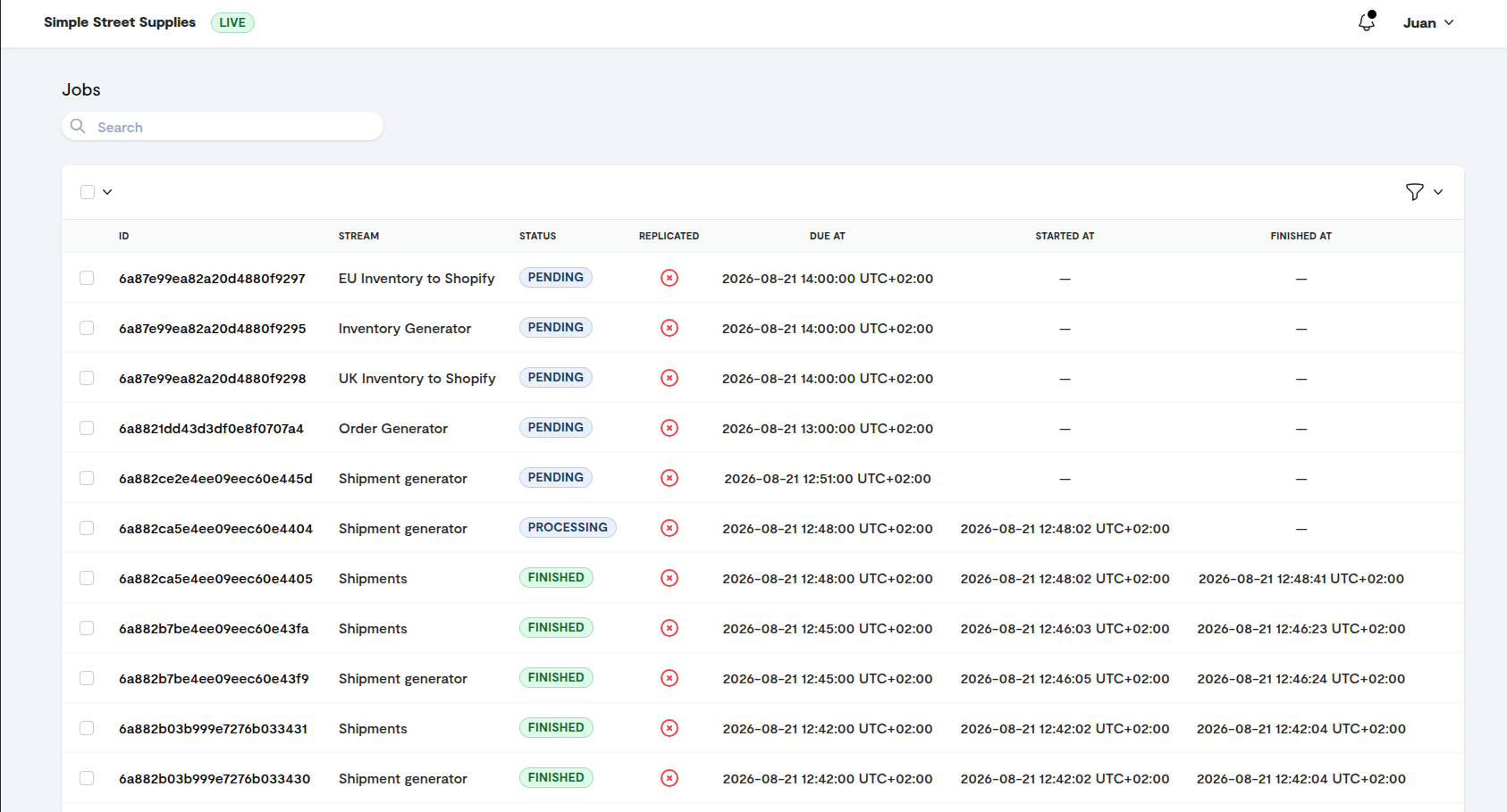
The jobs list shows every run in reverse chronological order (newest first). Use the filters to narrow by stream, status, or date range when investigating a specific window, for example all jobs for your orders stream during last night's sync.
The job view
Opening a job shows its execution log and the source files it processed. This is where you can see what a run actually did: how many events it created, and where any of them failed.
Rerunning a job
Rerun lets you run a previous job again, optionally with edits. Use it when an entire run failed, for example because the source system was unreachable or timed out, rather than resending each event individually. To rerun several jobs at once, select them in the jobs list and choose Actions > Rerun jobs; you can follow the request on the Resends & reruns page. Rerunning a single job works differently depending on its type:
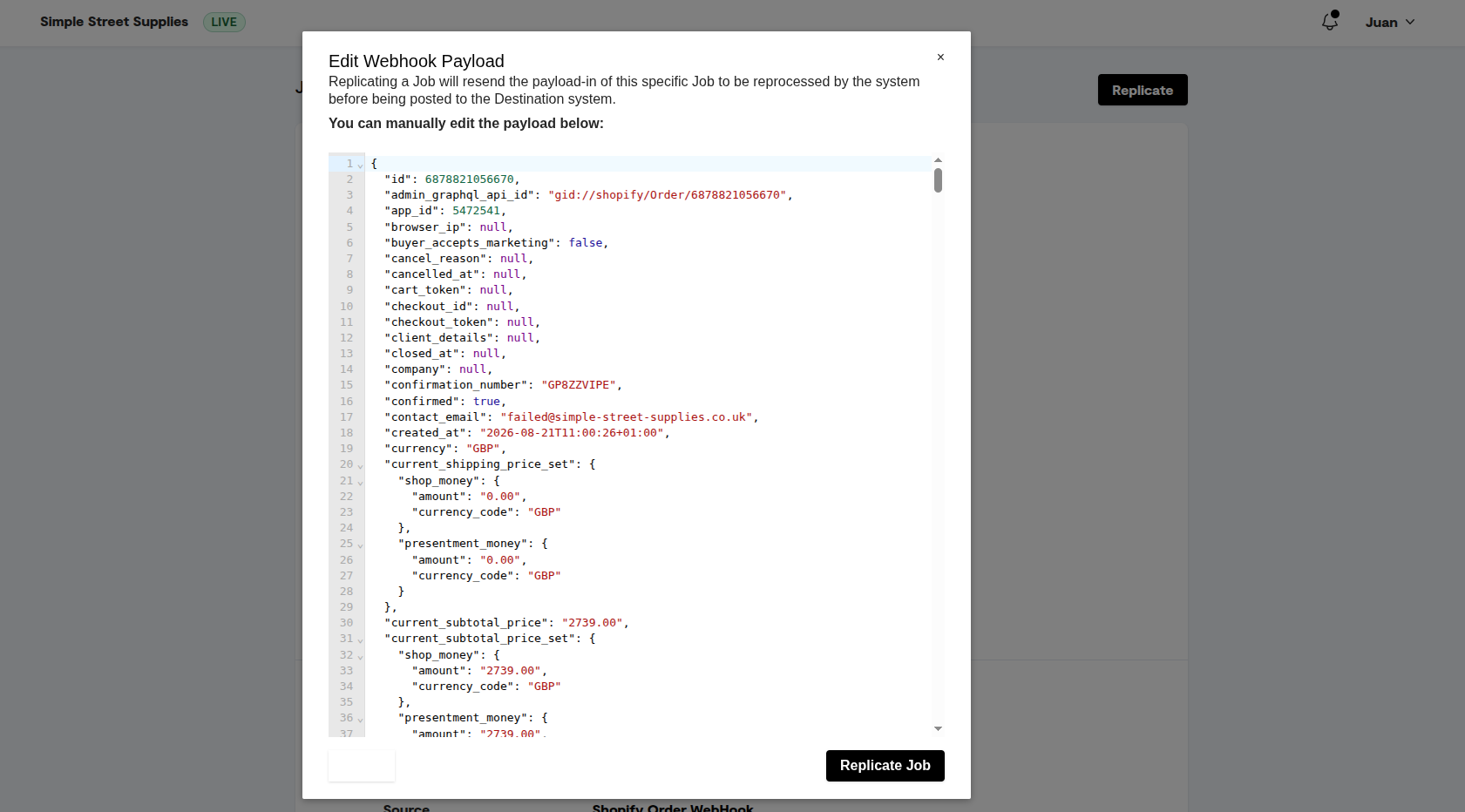
Webhook jobs: a popup shows the original webhook payload, which you can edit before rerunning
Manual and scheduled jobs: the job specification from the original run is shown, and can be edited before rerunning
Open the job.
Click Rerun.
Review the run's specification or webhook payload in the popup, editing it if needed.
Click Rerun Job.
Rerunning a job reprocesses its data, so if you are unsure whether a rerun could create duplicates, check with HC first. Entity deduplication protects against most repeat records, but it is worth confirming for financial data.
Related
Was this helpful?
Still need help? Ask the team